Documentation
Set up Connection Profiles
Development docs · main. Your installed version may differ.
A Connection Profile names one Azure DevOps project and keeps its access token outside your Templates. Create the token first with the required permissions, then follow the steps for your tool.
Atomize CLI
Section titled “Atomize CLI”# Azure DevOps profileatomize auth add work-ado# → prompted for org URL, project, team, and PAT# → set as default when prompted
# Verify it worksatomize auth test work-adoatomize auth test without a name tests the default profile. See Required Permissions for the PAT scopes.
Verify your profiles
Section titled “Verify your profiles”atomize auth list work-ado (Azure DevOps · default) URL: https://dev.azure.com/myorg Project: MyProject Team: MyTeam Token: [keychain] Created: 1/3/2026, 10:00:00 AMChange the default with atomize auth use <name> and remove a profile with atomize auth remove <name>. AI drafting has no profile to list: it authenticates through a Copilot Session instead (see AI Drafting: Copilot Session).
VS Code
Section titled “VS Code”- Run Atomize: Manage Profiles from the Command Palette.
- Choose Add profile... and enter a profile name, organization URL, project, team, and Personal Access Token. If you already use the CLI, you can choose Import from CLI... instead.
- Select a profile to Test, Rotate, Remove, or Set as default. Connected commands pre-select the default profile.
- To pre-select a different profile for a repository, set
atomize.defaultProfileto its name in workspace settings. The setting takes precedence over the default.
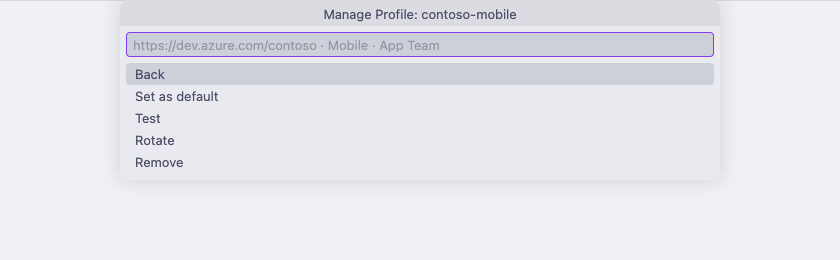
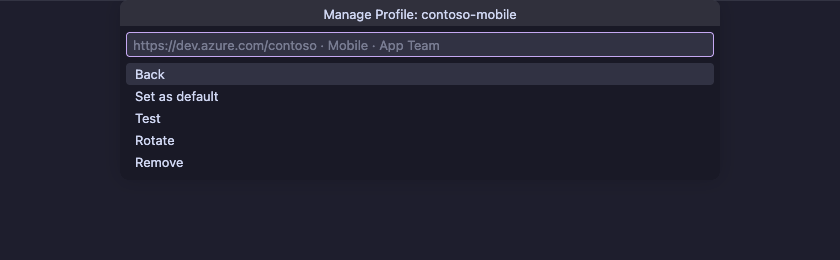
VS Code profiles are stored separately: see VS Code Profiles.
Credential storage
Section titled “Credential storage”The CLI stores tokens in the most secure available location, trying each tier in order:
| Tier | Storage | When used |
|---|---|---|
| 1 | OS keychain: macOS Keychain, Windows Credential Manager, Linux secret service (libsecret) | Default when keychain is available |
| 2 | Encrypted local file: AES-256-GCM, stored at ~/.atomize/, opt-in only | When keychain is unavailable and --insecure-storage is passed |
| 3 | Refuse to persist | When neither is available and --insecure-storage was not passed |
auth list shows which tier is in use for each profile: [keychain] or [file]. VS Code uses its own storage: see VS Code Profiles.
When the keychain is unavailable
Section titled “When the keychain is unavailable”Some environments do not have a working keychain: headless servers, Docker containers, and the Atomize standalone binary (bun build --compile cannot load native keychain bindings). In these cases:
- Interactive runs display a warning and ask whether you want to use the local file fallback.
- Non-interactive runs (CI/CD) require
--insecure-storageto be passed explicitly toauth add.
echo "$AZURE_DEVOPS_PAT" | atomize auth add ci \ --org-url https://dev.azure.com/myorg \ --project MyProject \ --team MyTeam \ --default \ --pat-stdin \ --insecure-storageIn CI, prefer injecting the token from your secrets store and creating the profile inside the job workspace: see CI/CD Setup.
VS Code profiles
Section titled “VS Code profiles”The VS Code extension keeps its own Connection Profiles, independent of the CLI. Non-secret fields live in VS Code's globalState and tokens in VS Code's SecretStorage. The extension never reads or writes ~/.atomize/connections.json during normal use, so adding, rotating, or removing a profile in VS Code does not change the CLI's profiles, and changes made there do not appear in VS Code.
If you have no VS Code profiles yet and the CLI has some, Atomize: Manage Profiles offers Import from CLI..., a one-time copy that you start yourself: choose the profiles to import, and the extension pre-fills their organization URL, project, and team from ~/.atomize/connections.json without writing to it. Paste each access token once. Later CLI changes are not synchronized.
Connected commands ask you to choose a profile. The picker pre-selects the profile named in the atomize.defaultProfile setting, or the profile marked Set as default when the setting is blank or names an unknown profile. Set atomize.defaultProfile in .vscode/settings.json so a repository pre-selects its project; the setting stores a name, not a credential.
Rotating tokens
Section titled “Rotating tokens”When a PAT expires, update it in place without removing the profile:
atomize auth rotate work-ado# → prompted for the new token# → replaces the stored token; all other profile settings are preservedFor non-interactive callers, pipe the new PAT through stdin:
echo "$NEW_PAT" | atomize auth rotate work-ado --pat-stdinAfter rotating, verify the connection:
atomize auth test work-adoIn VS Code, run Atomize: Manage Profiles, select the profile, and choose Rotate, then Test. Rotating a VS Code profile does not change the CLI profile with the same name.
AI drafting: Copilot Session
Section titled “AI drafting: Copilot Session”AI drafts and Template Improvements run in an ephemeral, tool-free Copilot Session on your own signed-in GitHub Copilot account. The GitHub Copilot SDK hosts it for the CLI (atomize template create --ai and atomize template improve). The VS Code extension uses the Copilot account you're signed in to in VS Code.
- An active GitHub Copilot subscription is required.
- Atomize stores neither a Copilot token nor a Copilot Connection Profile. There is nothing to add, list, rotate, or remove with
atomize auth. - Each session is discarded after the draft or improvement finishes, and nothing persists between runs. Automatic model selection applies in the CLI. In VS Code, the
atomize.ai.modelsetting chooses the model. - Copilot receives your request, the Template being improved, and the Grounding you chose for that run. It never receives a Connection Profile's token, and it never receives Stories or other work items.
Sign in for each tool:
- CLI: an interactive run starts GitHub Copilot sign-in when needed. A non-interactive run (a script, a CI job) can't complete sign-in, so it stops and asks you to run
gh auth loginin a terminal on that machine first. - VS Code: install GitHub Copilot Chat and sign in to Copilot in VS Code. The first time, VS Code asks you to allow Atomize to use Copilot's language models.
A Copilot Session is not a Connection Profile: it never appears in atomize auth list, has no default, and is unrelated to the Azure DevOps profile resolution below. Grounded runs use both: Copilot writes the Template, and a Connection Profile supplies the project details and any Azure DevOps wiki pages.
Continue with a connection
Section titled “Continue with a connection”Each tool shows the planned Tasks before it creates any:
- VS Code: run a Live Preview, then generate Tasks when the plan is ready.
- CLI: follow connected generation. A dry run reads Stories without creating Tasks.
If a connection fails, see Fix connection problems.