VS Code
Generate Tasks in VS Code
Development docs · main. Your installed version may differ.
Preview a Template against real Stories, then create Tasks once the plan is right. Nothing is created until you confirm in VS Code’s dialog.
Before you start, set up a Connection Profile. Try the Template offline with Mock Preview first if you have not already.
Preview against a real Story
Section titled “Preview against a real Story”Runs Live Preview against a real Story through a selected Connection Profile. It reads Story data and renders the resolved task breakdown as a dry run. It does not create Tasks.
- Run Atomize: Preview (Live) from the Template's CodeLens or the Command Palette.
- Choose a Connection Profile. The picker pre-selects your default profile.
- Choose one Story with the Story Browser. It opens on the current and next sprint, and you can search for any Story or type its ID. If the browser can't load Stories, you're asked for a work item ID instead.
The Live Preview Panel opens beside the editor and shows each resolved Task with its estimate. Standard and Compact switch the layout. If authentication fails, the panel explains why and offers Manage Profiles; a Story that can't be read shows Work item not found with the reason.
Generate Tasks
Section titled “Generate Tasks”Runs the Generate Panel for the active Template. The panel first shows a dry-run report. Task creation requires an explicit panel action and confirmation.
- Run Atomize: Generate from the Template's CodeLens or the Command Palette.
- Choose a Connection Profile. The picker pre-selects your default profile, but you still choose it, and every execution is still confirmed.
- The Story Browser opens on the current and next sprint. Tick the Stories to generate for, or press Enter with none ticked to run on every Story the Template's filter matches. Picked Stories are handled exactly as typed Story IDs were before: the Template's
excludeIfHasTasksstill applies. - The Generate Panel opens beside the editor with a DRY RUN report: each Story with its resolved Tasks and estimates, and any Tasks skipped by conditions. Nothing has been created yet.
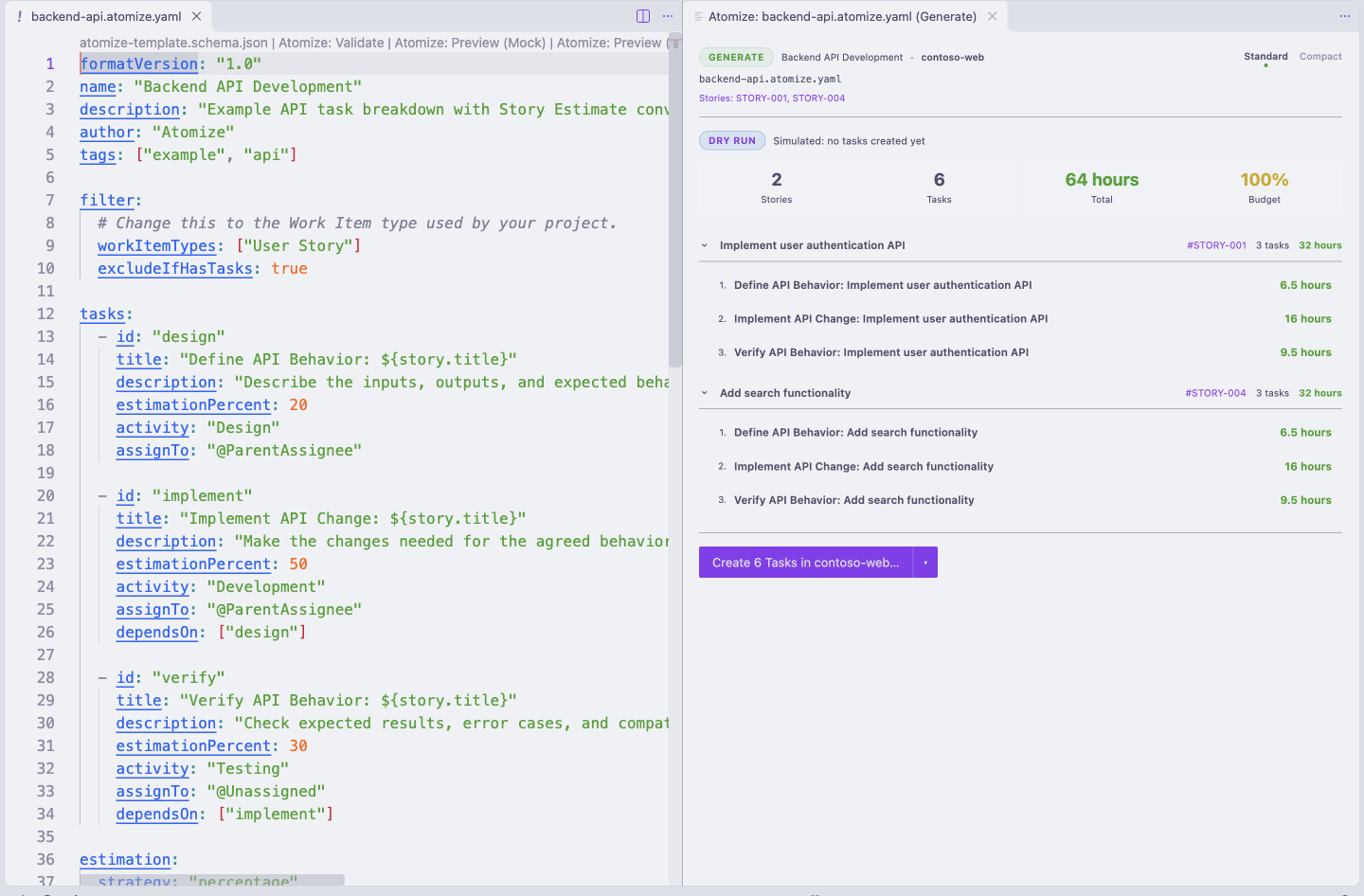
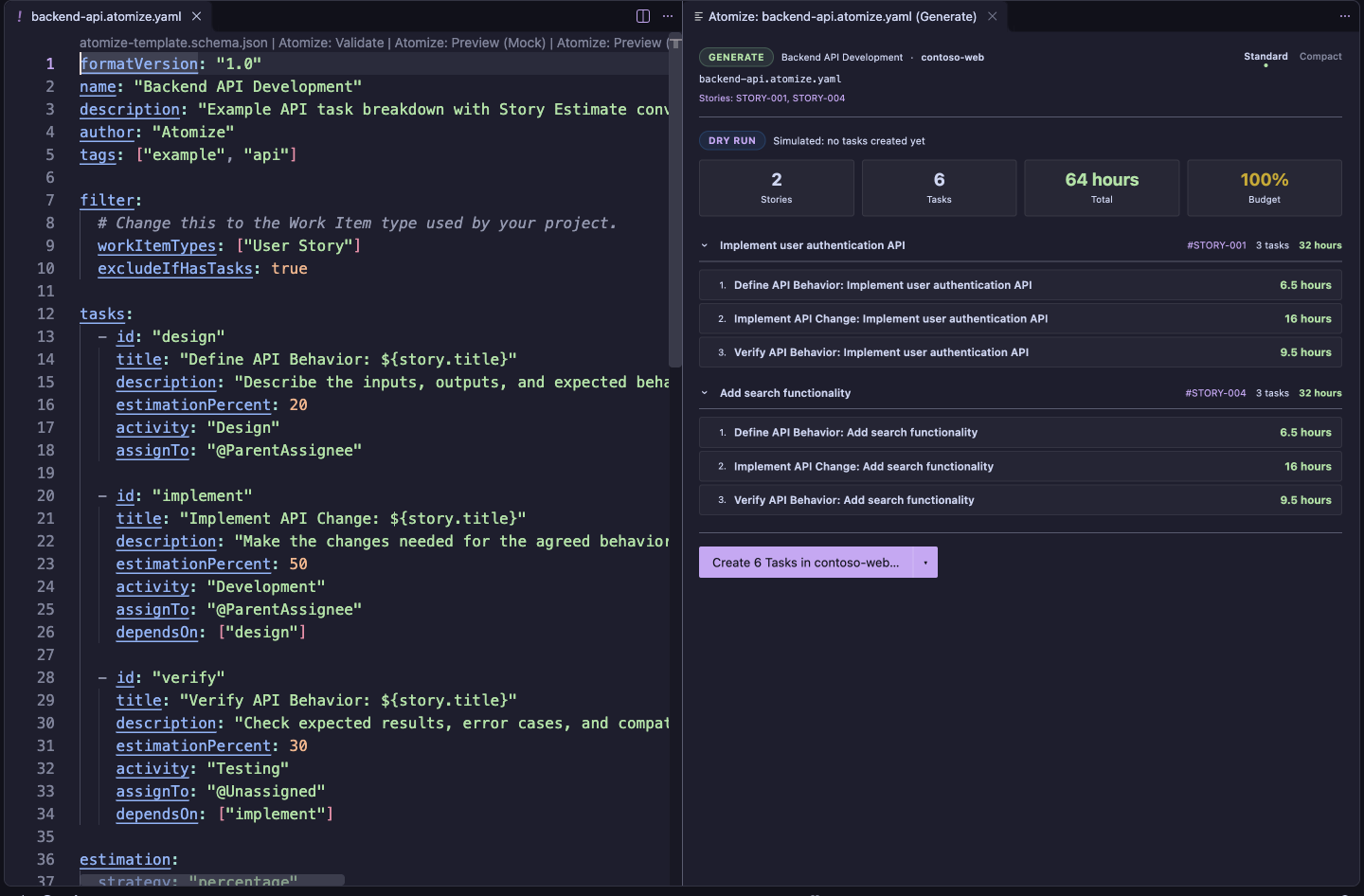
- Choose Create N Tasks in profile…. The arrow beside it offers Continue on task failure, which keeps creating the remaining Tasks when one fails.
- Confirm in the dialog, which names the number of Tasks and Stories and the profile, by choosing Create Tasks. Closing the dialog creates nothing.
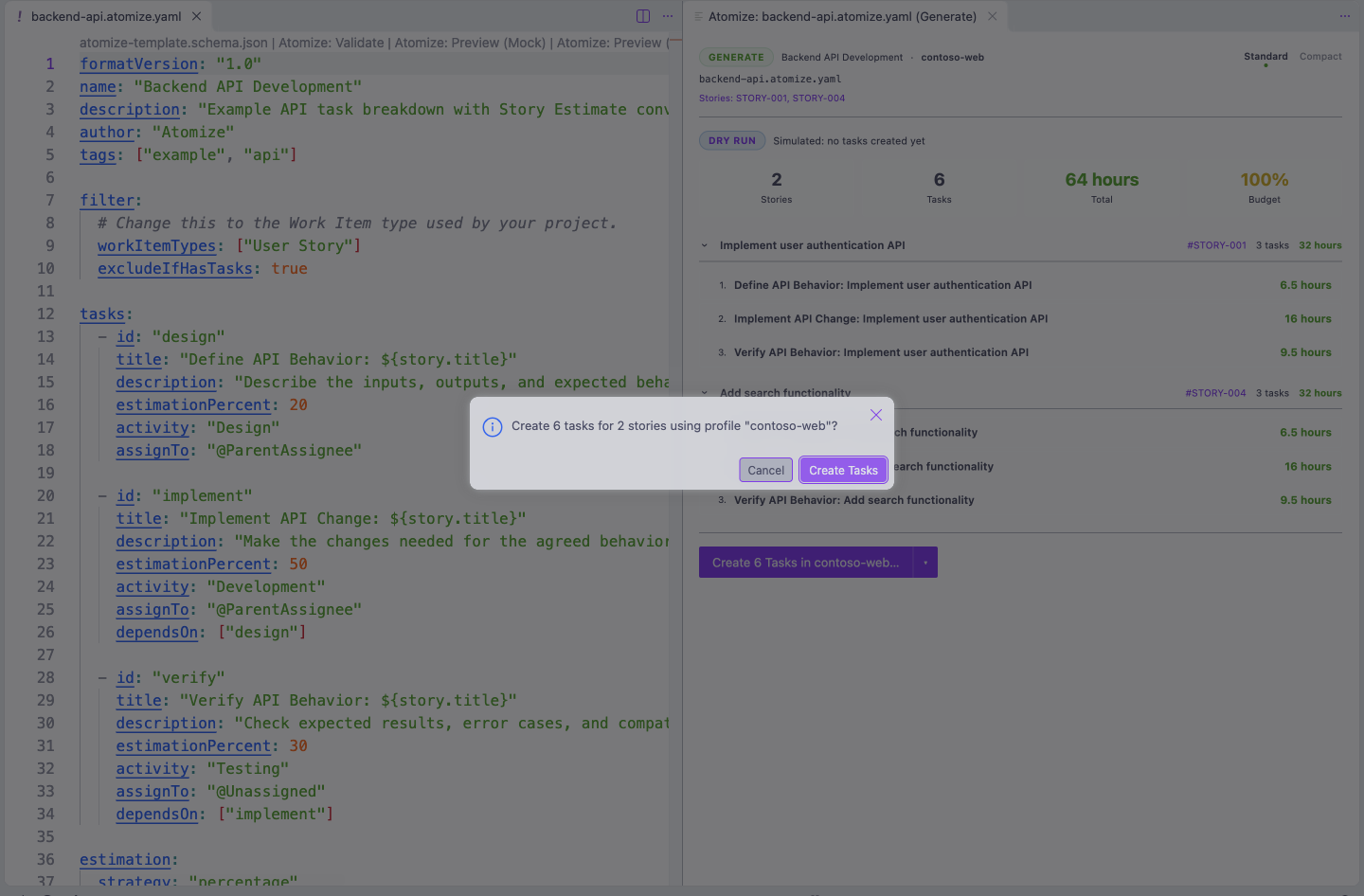
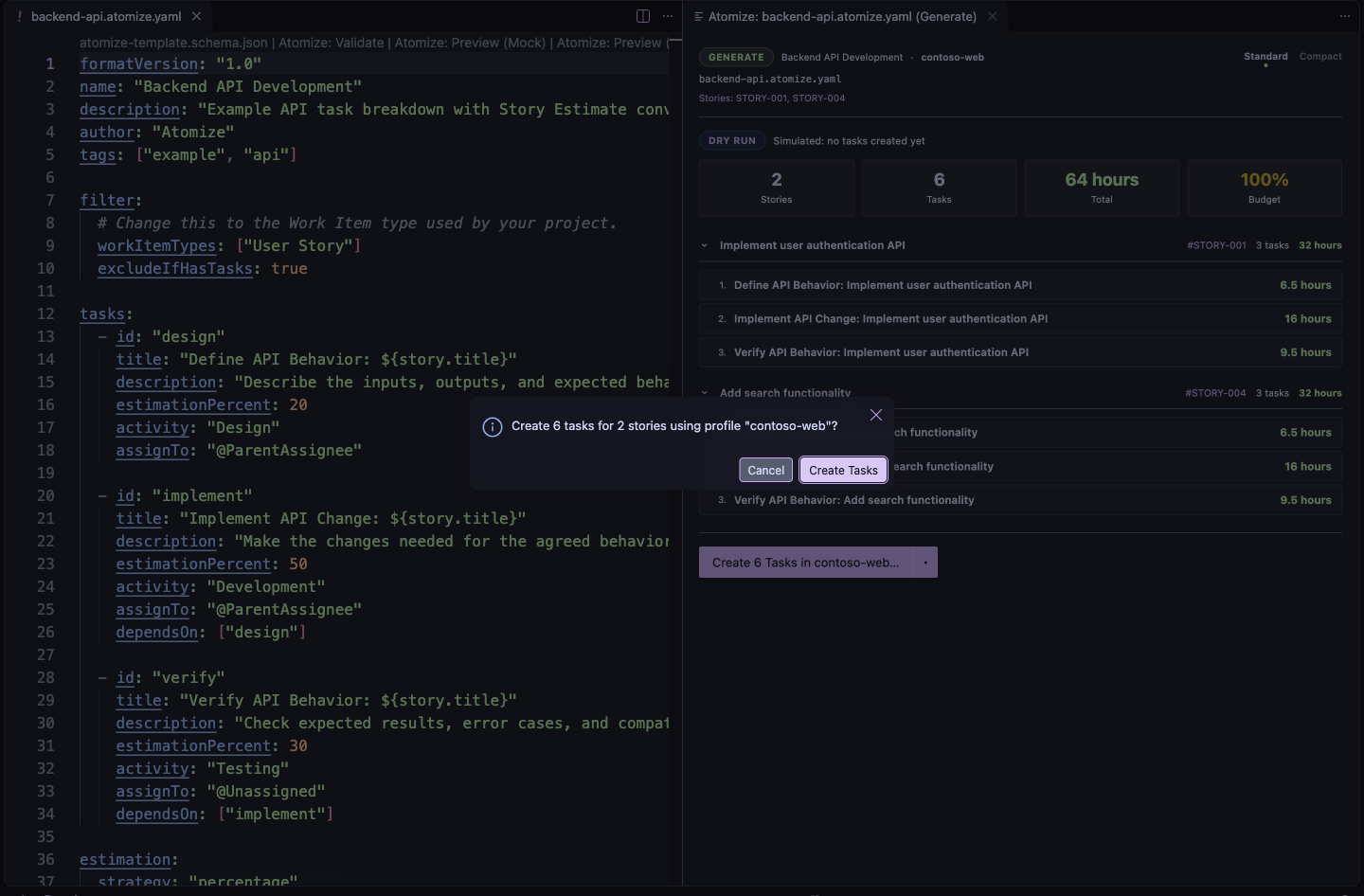
Tasks are created only after step 6. While they're created, the panel shows how many Stories are done and how many Tasks were created; there's no cancel action once creation starts. The result shows CREATED, or PARTIAL when some Stories failed, with links to the Stories and Tasks in Azure DevOps. Tasks that were created stay in Azure DevOps even when the run fails.
The panel won't offer creation when the dry run can't support it:
- Authentication failed: fix the profile with Manage Profiles, then run Generate again.
- No matching stories: none of the picked Stories were found or all were excluded by
excludeIfHasTasks, or the Template's filter matched nothing. - No tasks to create: Stories matched, but the Template's conditions filtered out every Task.
- A Story that fails in the dry run blocks creation until you fix the error and run Generate again.
Use Generate only when the previewed task plan is ready to create in the connected planning system.
Choose Stories
Section titled “Choose Stories”Commands that need Stories use the Story Browser instead of asking you to type Story IDs. It has two modes:
- Current and next sprint (the default) lists Stories of your Template's Work Item types that are in your team's current or next sprint, have no Tasks yet, and aren't closed. "Closed" means any state Azure DevOps puts in the Completed or Removed category, so it works for every process. This view needs the Connection Profile's team. Type to narrow the list.
- Search finds any Story in the project, assigned to anyone. Type a Story ID or part of a title. The title-bar buttons narrow the results by Work Item type, state, area path and iteration (each path includes everything under it), and switch Has Tasks on or off. The title shows every filter in effect.
Both modes list the newest Stories first, 50 at a time. Choose Load more… at the end of the list for the next 50, up to 500.
The title-bar buttons switch modes, and the pencil button lets you enter Story IDs directly when a Story isn't listed. When several Stories can be picked, your ticks are kept while you search, change filters and load more, and IDs you enter are added to them.
What connects and what creates Tasks
Section titled “What connects and what creates Tasks”Atomize previews by default.
| Surface | Connects to platform | Creates Tasks |
|---|---|---|
| Save-time diagnostics | No | No |
| Validate, offline | No | No |
| Validate, online | Yes | No |
| Preview (Mock) | No | No |
| Preview (Live) | Yes | No |
| Generate dry run | Yes | No |
| Generate confirmed execution | Yes | Yes |
| Draft Template with AI | No (sends your description to Copilot) | No |
| Improve Template with AI | No (sends the Template to Copilot) | No |
If something goes wrong
Section titled “If something goes wrong”Rejected tokens, missing permissions, and Azure DevOps errors are covered in Fix connection problems. For editor issues, see VS Code troubleshooting.