Documentation
Try Atomize in VS Code
Development docs · main. Your installed version may differ.
Try a complete task breakdown inside your editor before connecting a project. Start with a built-in Template, then save an editable copy when you want to adapt it.
Install the extension
Section titled “Install the extension”Install Atomize (atomize.atomize) from VS Code’s Extensions view. For a packaged release, download the .vsix from an extension release and use Extensions: Install from VSIX…. No separate CLI install is needed: validation, preview, and generation all run in-process.
The extension pack includes YAML by Red Hat; make sure it is enabled. Atomize YAML files stay on VS Code's YAML language service so schema hovers and completions work.
Open a built-in Template
Section titled “Open a built-in Template”- Open the Command Palette with Cmd+Shift+P on macOS or Ctrl+Shift+P on Windows/Linux.
- Run Atomize: Browse Catalog and find Backend API Development (
template:backend-api). - On that row, choose the Open backing file button, shown as a go-to-file icon. Pressing Enter instead copies the ref, or inserts it into an active Atomize YAML File; it does not open the Template.
The built-in Template opens as a read-only Atomize YAML File. You can inspect and preview it directly. To edit your own copy, use File: Save As… and save it with an .atomize.yaml filename.
Run Mock Preview
Section titled “Run Mock Preview”With the built-in Template's editor active, run Atomize: Preview (Mock) from the Command Palette, or select its CodeLens above the YAML. The Mock Preview Panel opens beside the editor. No Connection Profile, Azure DevOps access, or Copilot sign-in is needed.
Use these values in the generated form:
| Input | Value |
|---|---|
| Estimation | 8 |
| Type | User Story |
Select Run Preview. The Template converts the input estimate of 8 to a 32-hour budget using its example factor of 4. In the result, expect 3 Tasks and a total Task Estimate of 32 hours, with 100% allocated. The first Task is Define API Behavior: Mock Story. The Task Estimates are 6.5, 16, and 9.5 hours after rounding to half-hour increments. The form shows the fields the Template references; other Mock Story values use defaults, including the title Mock Story. Choose Edit mock story to return to the form, change the estimate, and run again to see a different allocation.
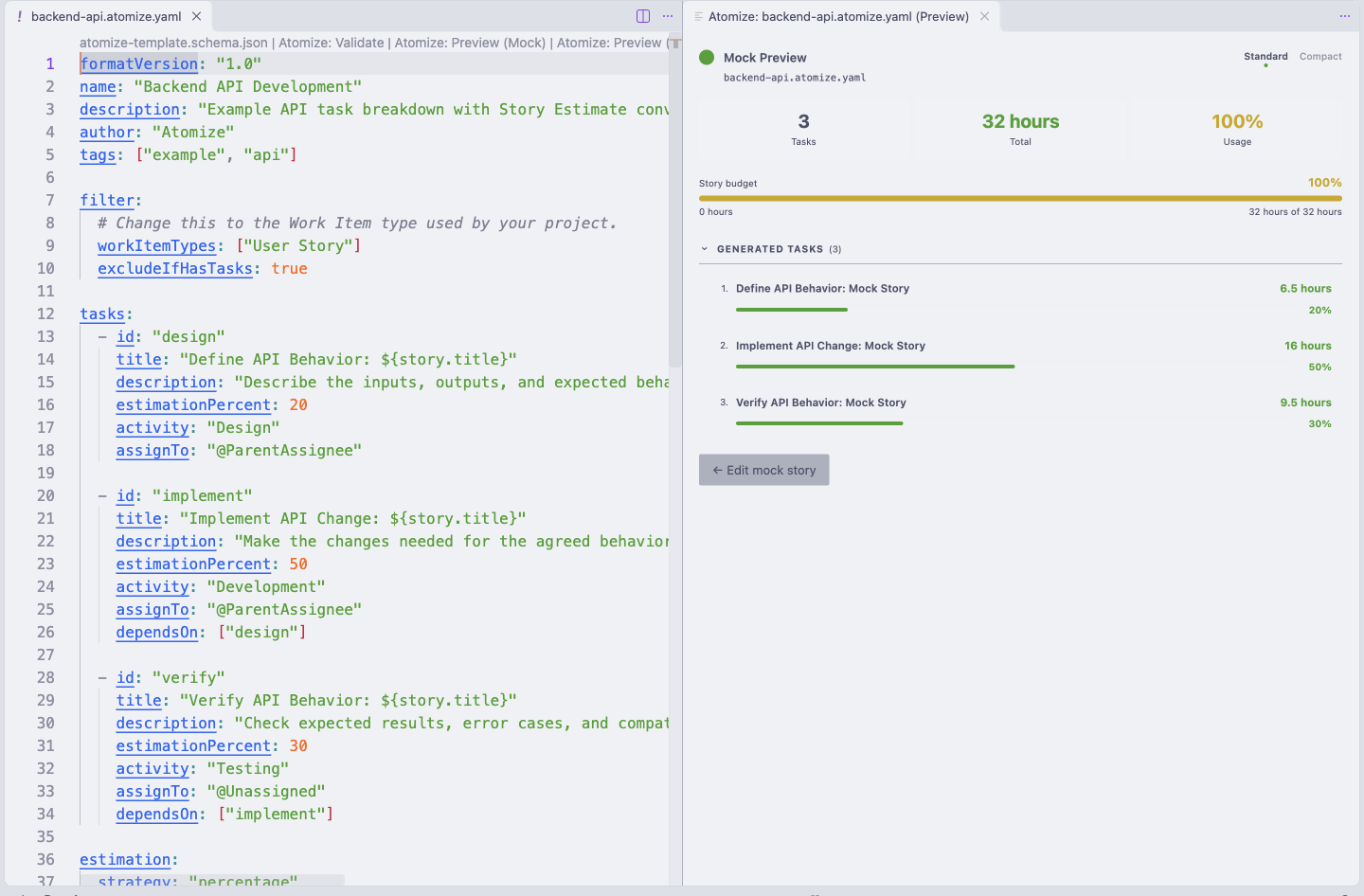
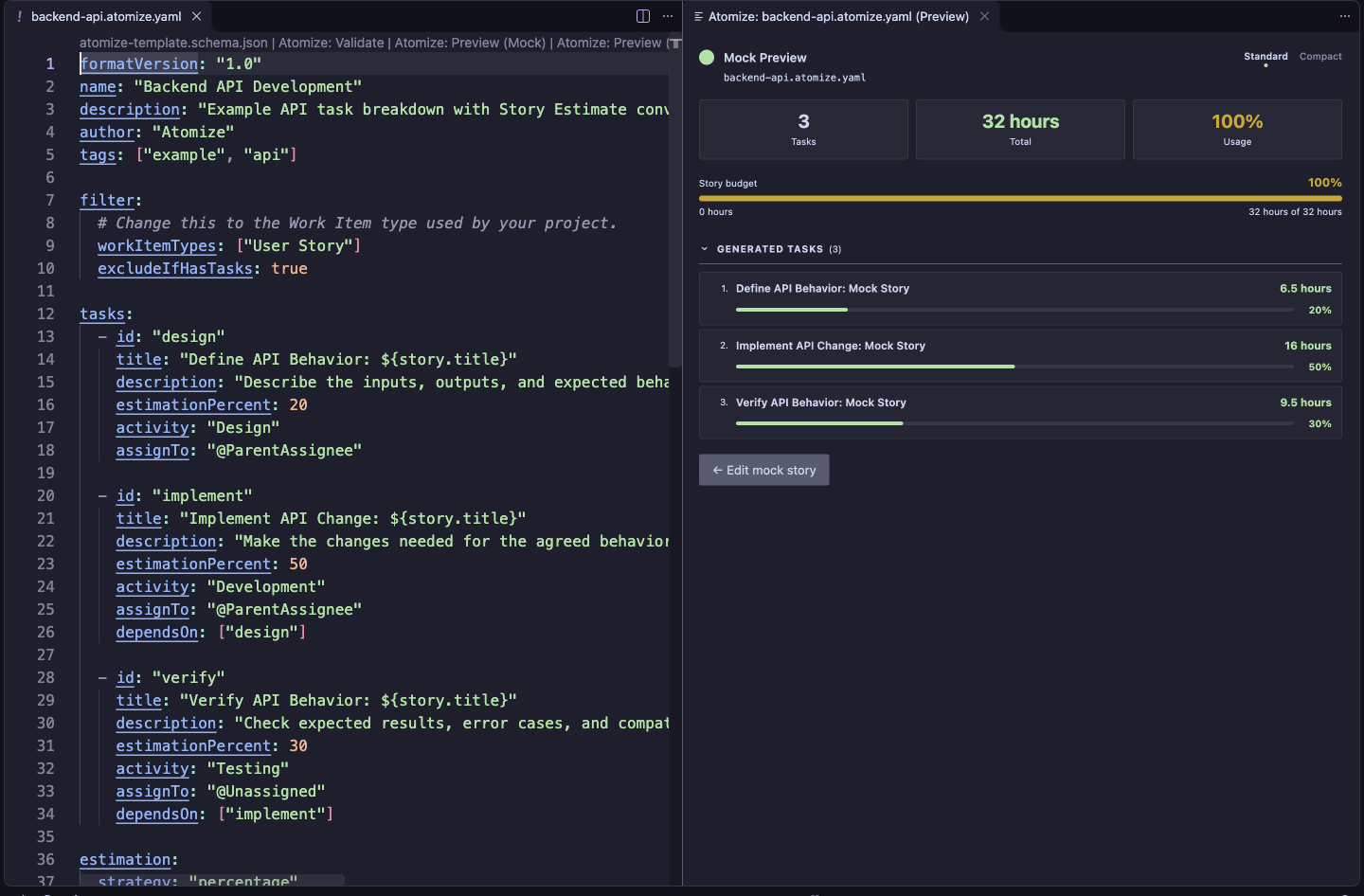
Mock Preview runs in-process, without querying a platform or creating Work Items. It uses the saved Template content. When a local file has unsaved edits, the command asks whether to save first or preview its saved version; cancel if neither is what you intend.
Continue from your first preview
Section titled “Continue from your first preview”Read Atomize YAML Opt-In to enable the full authoring surface for your own files, and Show Effective Template to inspect composition. For connected work, set up a profile with Manage Profiles and the required permissions, then Preview (Live) before Generate. Live Preview reads a real Story without creating Tasks; Generate requires an explicit action and confirmation before creating them.
Next steps
Section titled “Next steps”Author Atomize YAML to make the recipe your own. Inspect Templates covers the Catalog, composition, and field reference. Validation, settings, and recovery helps you check and maintain your editor workflow. When you are ready for real Stories, set up a Connection Profile and generate Tasks.